
Up and Running in Calm Minutes
Everything inside LingoBird mirrors the in-app Onboarding Guide and Flashcards Studio Guide — never forced, always available when you want it.
1. Optional Environment Setup
Optional Environment Overview
Open Settings anytime — flashcards, reading, writing, and starter decks already work offline immediately without adding any API keys.
Add an AI Model (Gemini API or Local Ollama)
Paste a free Google AI Studio key for Gemma 4 26B / 31B (up to 14.4K daily requests) or click "Scan Installed Ollama Models" if running Ollama on localhost:11434.
Configure Speech-to-Text (Whisper / Groq)
Pick Whisper Tiny (~39 MB) or Base (~73 MB) in Settings → Speech so spoken tutor exercises transcribe privately offline, or pair a Groq Whisper key.
Download Neural Voices & Offline Translator Packs
Cache female & male Piper TTS voices (~60 MB) and Helsinki-NLP OPUS-MT translator models (~32 MB) so Overview Translator and Reading play instantly offline.
2. Design Custom AI Flashcards Step by Step
Click New Deck & Set Languages
Enter your deck title, description, source language, and target language inside the Flashcards hub.
Open Advanced Card Styling & Fields
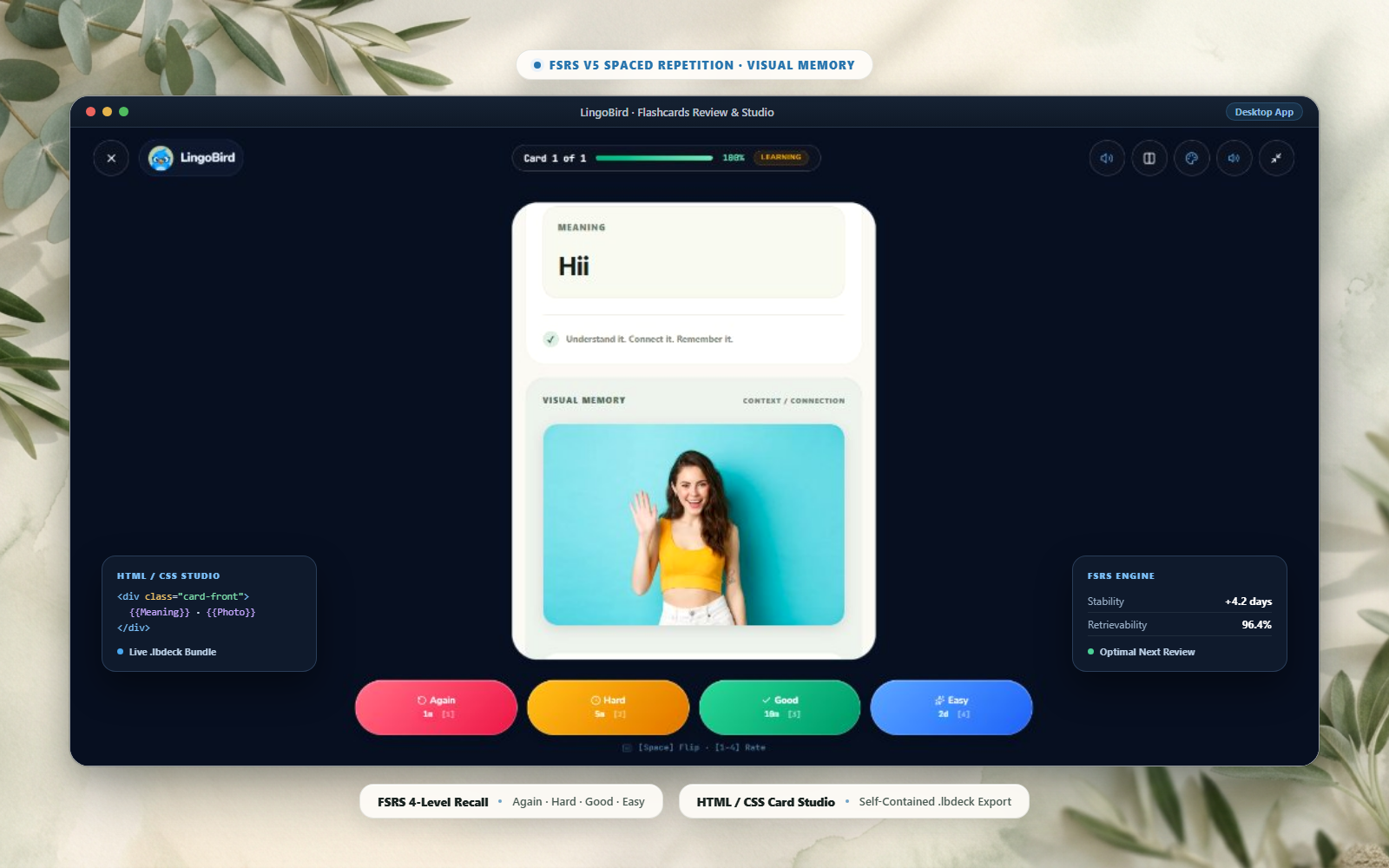
Define the template fields you want (word, phonetic reading, meaning, example sentence, notes).
Copy the Built-In AI Prompt & Paste HTML/CSS
Click Copy AI Prompt, generate your custom front and back card layout in ChatGPT or any AI, and paste the HTML/CSS right back into LingoBird.
Create Deck, Add Cards & Preview
Click Create Deck, add vocabulary items (or media), open Preview / Study with FSRS, and export anytime as .lbdeck.
Frequently Asked Questions
Do I have to configure an AI API key before using LingoBird?
Not at all. Flashcards, FSRS scheduling, Graded Reading, Writing Atelier, Mini Games, Saved Words, and Grammar starter packs all run without any API key.
Why does LingoBird offer both Piper voices and Whisper locally?
Pre-downloading compact neural weights removes cloud latency and preserves privacy: listening and speaking practice responds on your own Windows hardware even without Wi-Fi.
Can I turn off the startup guide and re-enable it later?
Yes. Choosing "Never show instructions again" confirms gently once, and you can toggle Startup Guide or Flashcard Creation Guide back ON anytime in Settings → Appearance / Guides.
Can I share custom HTML/CSS flashcard decks with friends or back up my progress?
Yes! Export individual decks as self-contained .lbdeck files (including templates & attached media), or export your entire SQLite/IndexedDB progress to a portable JSON backup in Settings → Data & Backup.